By default, when working in the Visual Editor and writing your epic, your text is styled as a normal paragraph. Headings are useful to present content in an organised and structured way. If you want to create a heading then you can select Heading 1 through to Heading 6. The higher the value the more important a search engine will consider it.
Within a page or post Heading 2 and 3 are most commonly used. You shouldn’t use Heading 1, as ordinarily this heading is reserved for the post or page title you enter at the top and you shouldn’t use more than one Heading 1 on a post or page.
Note: Do NOT use bold as a substitute for heading styles.
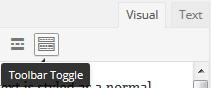
Before we begin, in the Visual Editor ensure you can see the second row of editing icons. Click the Toolbar Toggle ‘on’. (Hover over it with your mouse – a small tooltip will appear.)

Visual Editor – Heading Styles
To add a heading
Move to a new line. Select the heading style you require from the style drop down list in the toolbar that has the Paragraph option visible. Type in your heading text, once complete hit return and you will automatically revert to paragraph styling.
Heading 3
Within the Visual Editor your text including headings may look pretty plain. But styles selected here are defined by your theme. Essentially this means when you view from the front end it will automatically pick up existing styling to match. Notice how the heading ‘To add a heading’ has been styled above, whilst looking much plainer in the ‘Visual Editor – Heading Styles’ image.